DOCUMENT CONTROL FOR FIELD TEAMS

Document control and signatures so your jobsite never stops.

The platform for contractors and field crews: manage worker folders, sign contracts and safety records from your phone, and submit expenses without spreadsheets.

Start free without a credit card. In your browser and phone.

Permanent free plan with defined limits.

Site coordinator checking crew document records on phone as workers enter the site
Document status
Records up to date

Jorge Lagos Morales

Electrical Tech • Crew A

Labor contract & annexes (Electronic signature)✓ Up to date
PPE & Safety induction (DS 44)✓ Up to date
ACHS Mutual certificate✓ Up to date

Electronic Signature

Simple signature and process records.

DS 44 Safety

Occupational risk prevention and PPE.

Encrypted Data

Encryption at rest and access controls.

ACHS & SII

Certificates and public data checks.

FIELD DOCUMENT OPERATIONS

Your crew’s documents, ready for review

Stop chasing folders via email or waiting days for in-person signatures. Cebric connects contractor documentation across three operational pillars:

Explore interactive walkthrough
01Document control

Digital Worker Folders

Organize employment contracts, identity documents, site inductions, and client-specific prerequisites so your team can check what is ready and what is missing before a site review.

02Electronic signature

Mobile Electronic Signatures

Send contracts, amendments and PPE records for simple electronic signature from a phone. Keep the signed document and process history in one place.

03Safety & Field expenses

Safety Records & AI Expenses

Track safety procedures under DS 44, keep official ACHS certificates up to date, and report field expenses instantly using AI receipt OCR.

Document control in practice

See what your team still needs.

Find the missing file, prepare your document and review it before signing. Explore the real screens, one action at a time.

Explore document control

Step 01

See exactly what is missing.

The worker profile separates available records from missing files. Start with the document that needs attention.

Identity file missing

Available
One document in the profile
Next action
Upload the missing file
Worker profile with an available document, missing identity and PPE files, and a base contract upload action

Detail of available and missing records. Enlarge to see the full profile. This does not indicate site accreditation.

Step 02

Your document. Your team’s data.

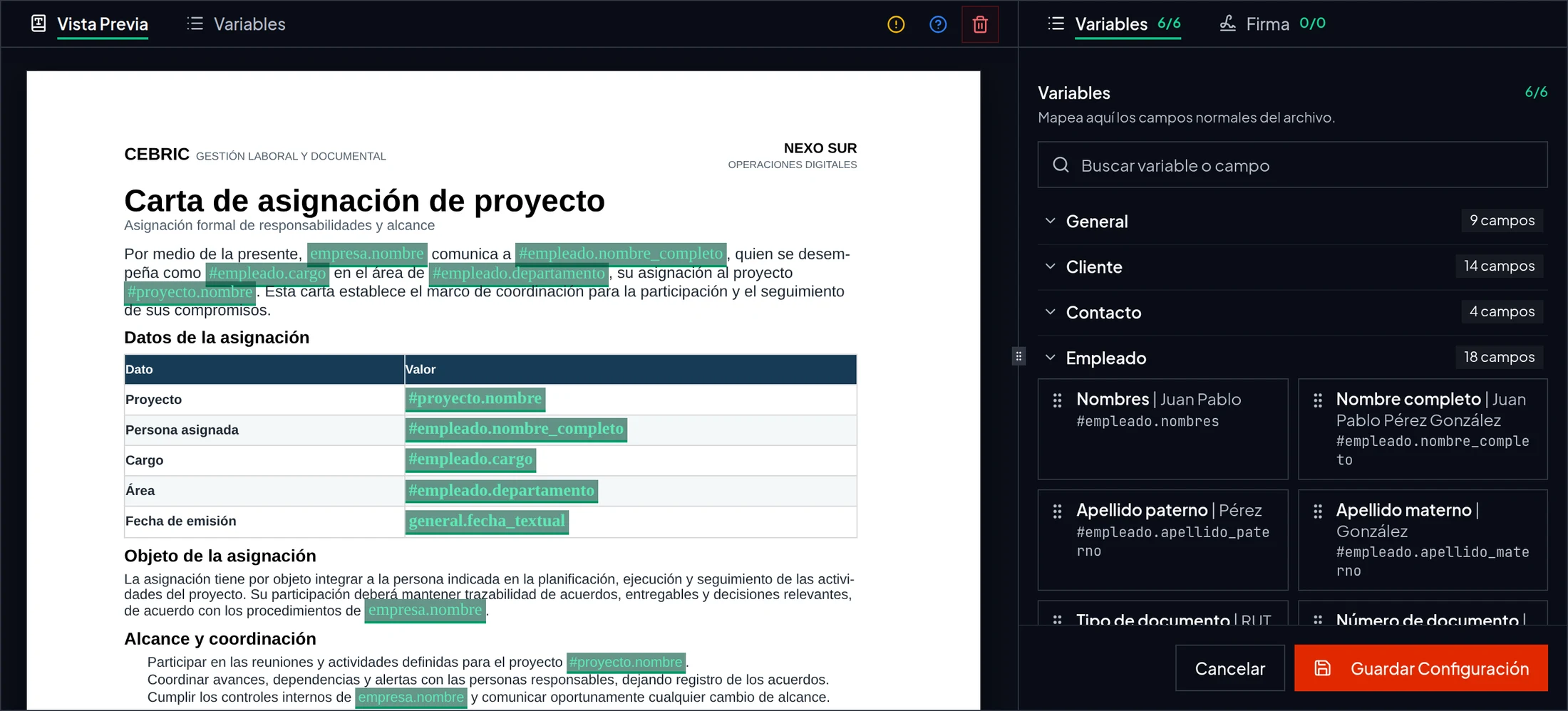
Upload an existing file or prepare it from your Word template. Link fields to company, worker and project data.

Template in preparation

This example
Six linked fields
You control
Content and recipients
Real Word template editor with a project assignment letter and six linked fields

Template configuration, not a completed PDF generation or a sent signature request.

Step 03

Read it. Then decide whether to sign.

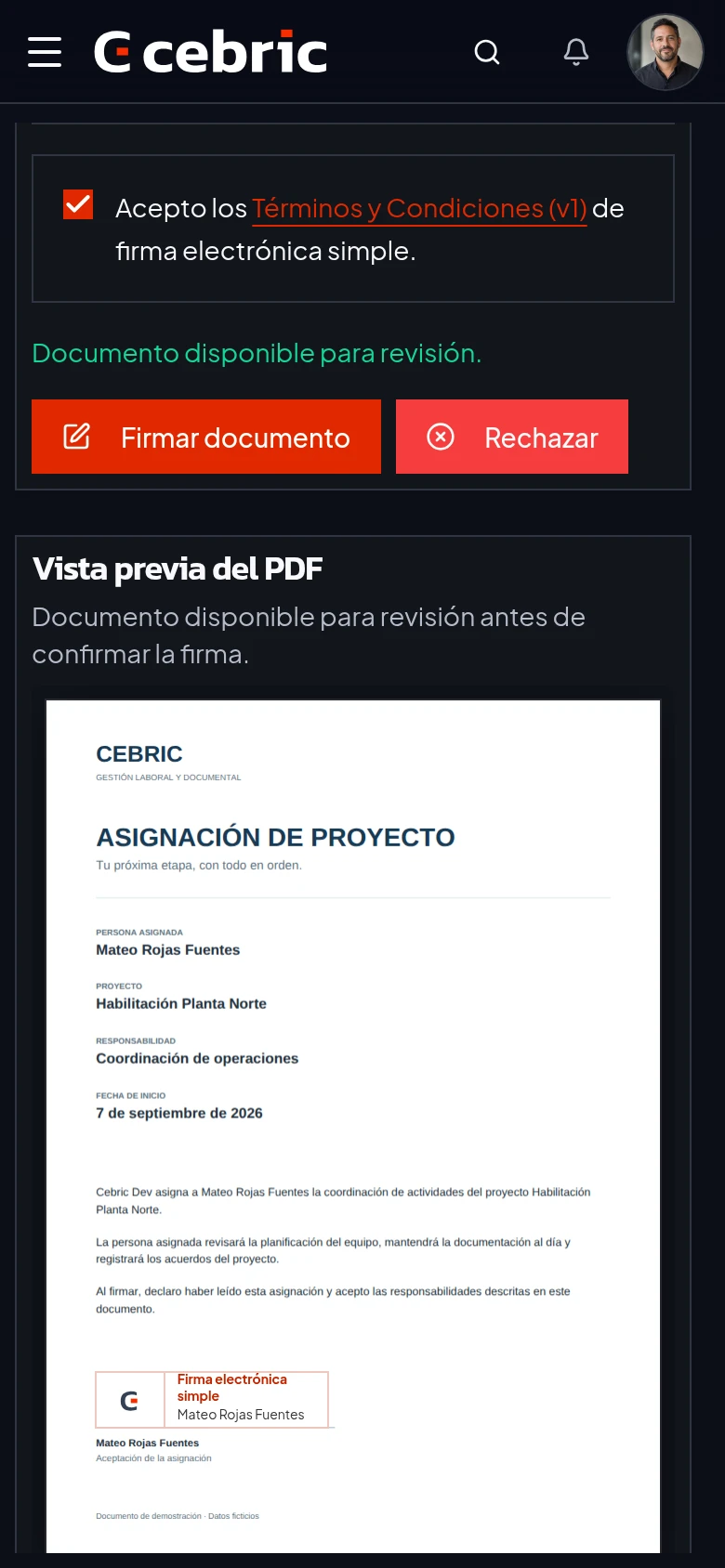
The signer reviews the PDF and accepts the consent terms before confirming. Preparing a document is not the same as signing it.

Signature not confirmed

Before signing
Review the PDF and consent
Next action
Confirm or reject the signature
Mobile signature screen with consent checked, PDF preview and enabled sign and reject actions; signature not confirmed

Real pre-confirmation screen. The signature mark in the PDF is a preview, not a completed signature.

Simple electronic signature

Read it. Accept it. Sign from your phone.

The signer reviews the document and gives consent in the same flow, without printing or scanning.

View details
Mateo reviews a project assignment on a phone with consent checked and the Sign document button enabled

Document open, consent checked. Ready to confirm the signature.

Word templates

Your Word. Your team’s data.

Connect each field to your team’s data. Keep the Word design you already use.

View details
Dark Word template editor with six variables linked to company, worker and project data

Your Word letter, with the fields that change connected to cebric.

Safety records

PPE and safety records, documented

Keep deliveries, assignments and signed records by worker. DS 44 is Chile’s current occupational risk prevention framework.

Cebric supports document organization. It does not replace preventive assessment or guarantee legal compliance.

View details
Draft PPE delivery for Jorge Lagos with four items, quantities and sizes, ready to send for signature

The delivery records each person’s items, quantities and sizes. Next step: send it for signature.

Field expenses and suppliers

Upload the photo. AI reads the receipts.

Cebric separates receipts and proposes supplier, amount and line-item data. You review the proposed expense before submitting.

Explore AI expense reports

Step 01

Start with a photo of your receipts.

Upload a photo with one or more receipts. Cebric reads it online and prepares the data for review.

Internet connection required

From your phone
Upload through the browser
Next action
Analyze with AI
Illustrative scene of a person photographing receipts with a phone on a work table

Illustrative scene. Uploading and analysis happen in the app; this walkthrough does not process files.

Step 02

Two receipts. Separate amounts.

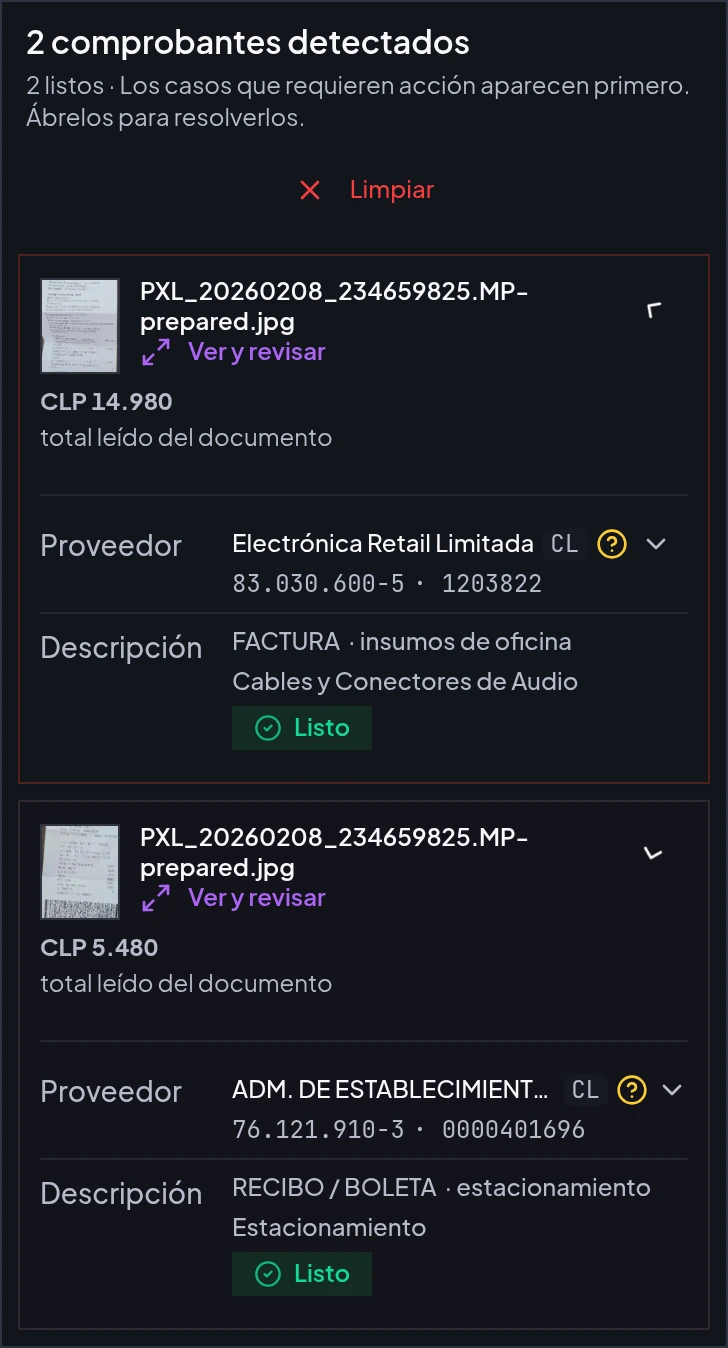
In the test case, AI detected two receipts in one image. Each has its own amount and supplier.

Two receipts detected

Electronics invoice
CLP 14.980
Parking receipt
CLP 5.480
Real Cebric results with two receipts and totals of CLP 14,980 and CLP 5,480; supplier, tax ID and date corrected during review

Real results after supplier, tax ID and date corrections. Detection does not mean an expense has been submitted or approved.

Step 03

AI prepares it. You have the last word.

Open each receipt, compare the proposed data and correct what is needed before saving and submitting the expense.

Submission is a separate action

Check
Supplier, tax ID, date and amount
Next action
Save, then submit in the app
Mobile view of the same two reviewed receipts, with expanded supplier details and View and review actions

Detail of the same results on mobile, not a later submission. “Ready” refers to the reviewed receipt data, not an approved expense.

Crossed-out items
Recognizes crossed-out lines or items marked with an X to leave them out.
Handwritten amounts
Detects a handwritten reimbursement amount, even when it differs from the printed total.
Clear review
Flags unclear data so you can check it against the receipt.

Available integrations

Connected with ACHS and SII

Bring certificate downloads and supplier checks into the processes your team already uses.

See integrations

ACHS

Available

Download and keep ACHS affiliation, up-to-date contribution and rate certificates in the operation.

SII

Available

Validate a supplier tax ID and compare its legal name using a public SII source during expense reporting.

Your first task

Start with one document.Or one receipt.

Try the workflow with your own information before moving the rest of your operation.

Browser-based. Internet connection required.

  1. Create your account

    Verify your email and set up your company workspace. Explore is a permanent free plan with defined limits.

  2. Prepare one real task

    Have a worker document or a receipt photo ready. Start with the process you need today.

  3. Review and complete the task

    Check a document and send it for signature, or review the extracted receipt data before submitting an expense.

Plans

Start free. Pay when the operation grows.

Explore is a permanent free plan. Chilean customers see CLP prices including VAT; all other countries see USD.

Create your account with Explore. Choose a paid plan inside the app when you need it.

Four plans. Swipe to compare.

Explore

For organizing a small operation and using the real cebric workflow.

$0 per month

$0 USD per month

Included

  • Document control and projects
  • People, contracts and Word templates
  • Simple electronic signature
  • OHS, PPE, procedures and expenses
Limits and usage +
  • 2 users
  • 5 workers
  • 2 projects
  • 10 signatures per month
  • 10 expense reports per month
  • 250 MB
  • 1 document version
Start free

Basic

For small companies that need more capacity and external signers.

$29.990 per month

Annual payment: $287.904. equivalent to $23.992 per month.

$29 USD per month

Annual payment: $278 USD. equivalent to $23 USD per month.

Included

  • Everything in Explore
  • External signers
  • Granular roles and permissions
  • Longer document history
Limits and usage +
  • 5 users
  • 15 workers
  • Unlimited projects
  • 50 signatures per month
  • 50 expense reports per month
  • 1 GB
  • 3 document versions
Create an account

Scale

For organizations that need custom capacity, security and support.

Custom

Custom

Included

  • Everything in Growth
  • SSO designed to requirements
  • Custom corporate branding
  • Negotiated capacity, SLA and support
Limits and usage +
  • Custom users
  • Custom workers
  • Unlimited projects
  • Custom signatures per month
  • Custom expense reports per month
  • Custom storage
  • Custom document history
Talk to sales

Additional usage on paid plans

Amounts shown for Chile include VAT. Outside Chile, USD applies. Explore does not support additional usage. Move to Basic or Growth when you need more capacity.

Basic

Additional expense report
$90$0.09 USD
Additional signature
$100$0.1 USD
Additional GB
$950$0.95 USD
Additional worker per month
Not applicableNot applicable

Growth

Additional expense report
$60$0.06 USD
Additional signature
$75$0.08 USD
Additional GB
$700$0.7 USD
Additional worker per month
$500$0.5 USD

Before you start

Can I start without a paid plan?

Yes. Explore is a permanent free plan with defined limits. It uses the actual product, not a demo that expires after a few days.

Can I use Cebric without internet?

No. Cebric requires an internet connection. You can take photos with your phone camera and upload them once you are online. Photos do not sync automatically, and upload, AI analysis and signing require a connection.

What do I need to get started?

Create your account, verify your email and set up your company workspace. Have a worker document or receipt photo ready to complete your first task. Setup time depends on the information and processes you need to configure.

Are workers and administrative users counted separately?

Yes. Plans have separate limits for users and workers. Users manage information in the platform; worker records hold their documents and assignments. External signers are available from Basic.

How does a worker sign a document?

They open the signing request, review the document, give consent and confirm their signature in a browser, including on a phone. Cebric provides simple electronic signatures; suitability depends on the document and its requirements.

Does Cebric guarantee approval by my client?

No. Cebric helps you prepare and track documents, requests and records. Your client decides whether they meet its requirements. Using Cebric does not by itself guarantee accreditation, site access or legal compliance.

Blog

Latest articles

View all articles

Product screenshot