
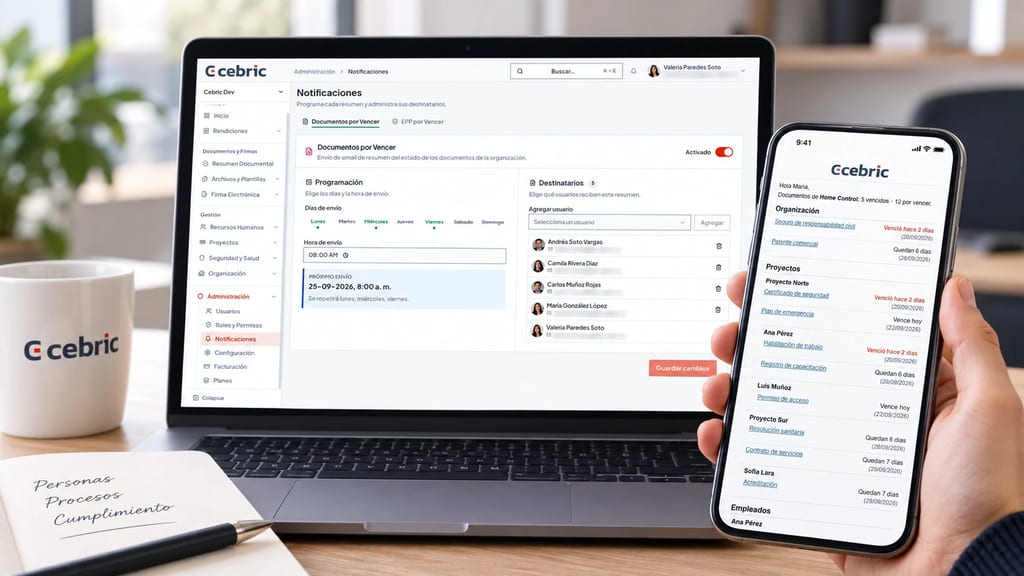
Documents and PPE may have different people in charge. In cebric, you can schedule two email summaries: Documents expiring and PPE expiring. Choose the recipients, delivery days and time for each one. Every item in the email includes a direct link to its record.
The cover is an editorial composition; the email screenshot and original settings views appear below.
Schedule each summary separately
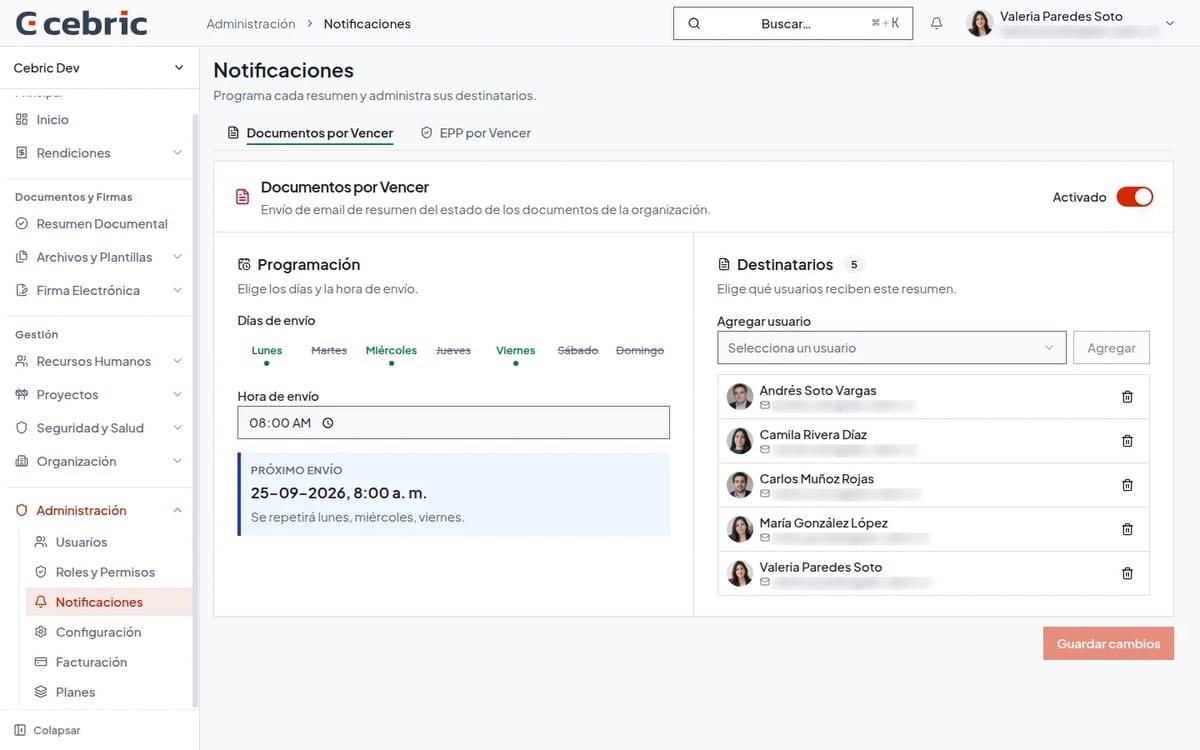
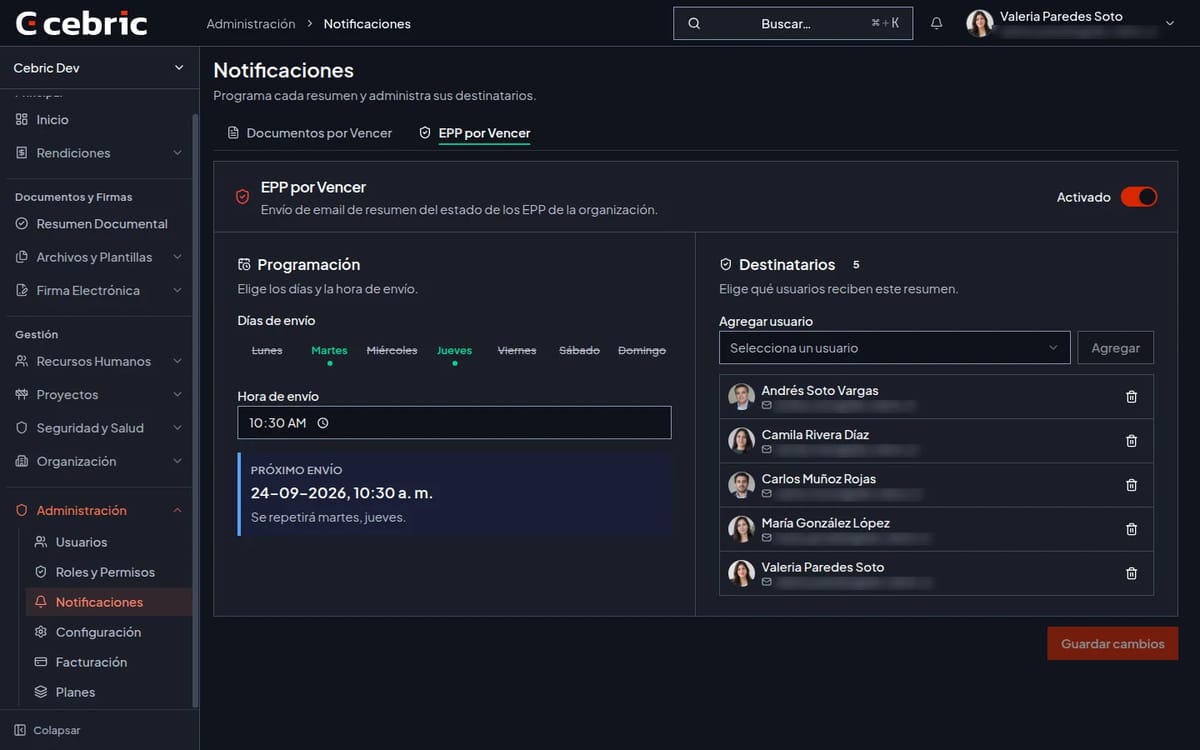
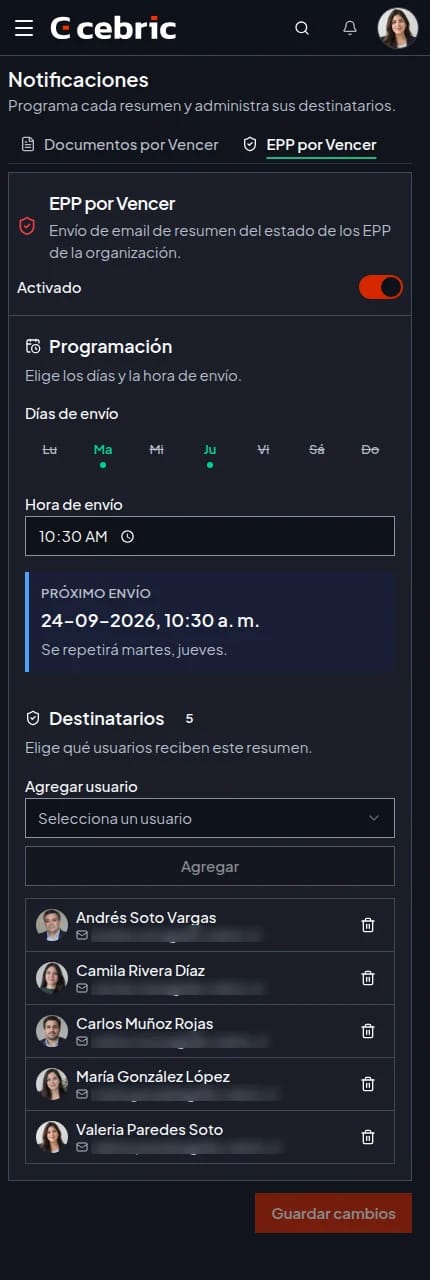
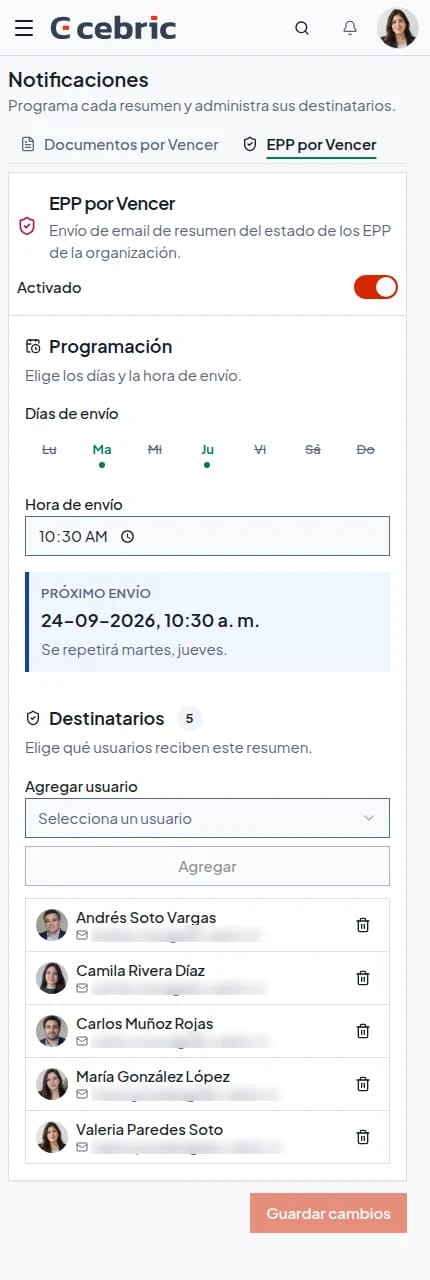
The screenshots below show the interface in Spanish. In cebric, open Administración → Notificaciones (Administration → Notifications); each summary has its own tab: Documentos por vencer (Documents expiring) and EPP por vencer (PPE expiring). Enable and configure each one to fit your team’s operation.
The settings panel shows the selected days and when the next email is scheduled.
Before adding recipients, agree on who reviews each type of record. For example, one person might handle organization documents while another reviews PPE. If one person reviews both groups, add them to both summaries; the recipient lists can differ. Choose delivery days and a time that fit when those people review their pending items. If the team reviews records weekly, the summary can arrive ahead of that check. Use the next-send panel to confirm the chosen schedule before saving.
What the email shows
The email brings expired and soon-to-expire documents together in a compact summary. In the example, records appear under sections for the organization, projects, employees and departments. Each item shows its status and includes a link that opens the document in cebric.
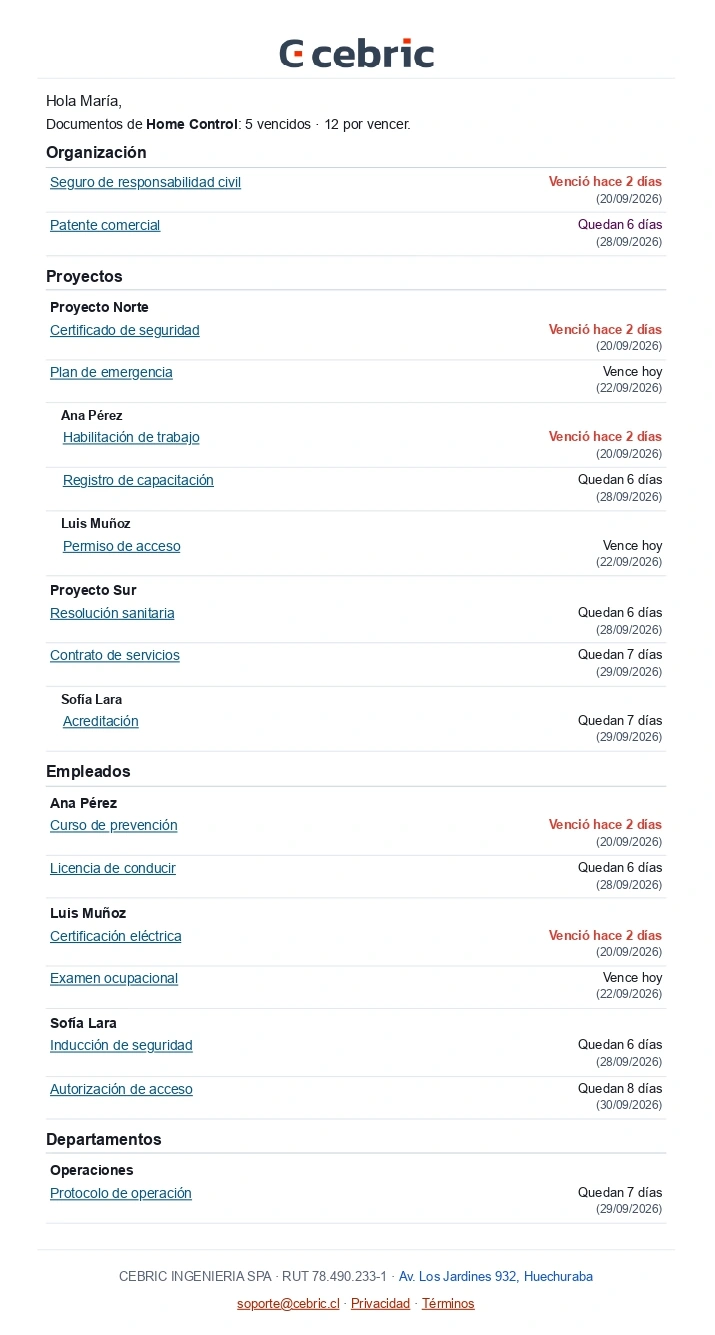
Example notification email shown in Spanish. The names are fictional. Check each document’s status and requirements in your company’s account.
How to set recipients and delivery times
- Open Administración → Notificaciones (Administration → Notifications).
- Choose Documentos por vencer (Documents expiring) or EPP por vencer (PPE expiring).
- Turn on the summary and select the delivery days and time.
- Add the people who should receive it, then save your changes.
If responsibilities change later, return to these settings to update the recipients, delivery days or time as needed.
A reminder to review, not a validation
The summary helps locate documents that need attention. The responsible person opens each record and decides what to do based on the company’s and project’s requirements.
For a related overview, see what a digital worker folder contains.
Coordinate the review with your team
Before enabling the summaries, agree on who checks each type of pending record and who can cover if that person is unavailable. Receiving the email does not assign an action automatically: the summary points to a starting place, but reviewing the record and following up remain the team’s responsibility.
After saving, confirm the selected days, time and recipients in each tab. Review the settings when responsibilities, team members or review routines change. This keeps the notifications aligned with the people who can act on documents and PPE.
References
- cebric notification settings and email screenshots provided by the team on September 24, 2026. Names shown are fictional, as confirmed by the user; recipient email addresses were blurred in the settings screenshots.
- cebric document control — related product page.
Frequently asked questions
Can I choose who receives each summary?
Yes. Choose recipients separately in the Documents expiring and PPE expiring settings. Each tab lets you add or remove people.
Does the email include a link to the record?
Yes. Every item in the email has a direct link to its corresponding record in cebric.
Does the summary replace reviewing the document?
No. The email helps locate the record; the responsible person still needs to check its status and decide what to do based on the company's and project's requirements.
Image gallery
Swipe, drag, or choose a thumbnail.
Ready to give cebric a try?
Start today at no cost and see how it works for your company.
Related Articles
View all articles
First steps in cebric: getting your team started
Learn the first steps in cebric: configure your organization, invite your team, create employees, set document requirements and organize files with templates.
Read article →

cebric: less paperwork for teams working in the field
Meet cebric, the Chilean platform for worker and project documents, signatures, PPE records and mobile expense reports without going back to paper.
Read article →